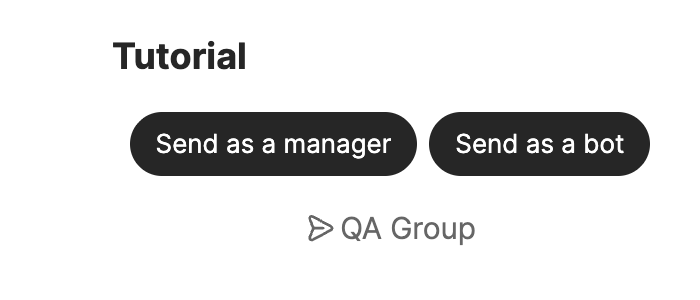
In this tutorial, you will build an app that opens a small screen when someone runs /tutorial in a Channel conversation. Two buttons on that screen send test messages. We recommend the TypeScript path for your first run. If you use Go, skip to Use Go instead.
This is what the finished app looks like:
You only need three terms before you start:
Function: one task performed by your app server. Opening the screen and sending a message are Functions in this tutorial.
Extension: a configuration that connects your Functions to a Channel feature. Here it connects the
/tutorialCommand.WAM: your app's screen inside Channel. This tutorial's WAM shows two message buttons.
The SDK verifies signed Function requests, registers the Extension, and connects the WAM to your server. You do not need to implement that plumbing yourself.
You need:
an account with access to the Channel developer portal;
Node.js 20.11 or newer and Corepack;
Git;
an HTTPS tunnel tool that can expose your local server, such as ngrok.
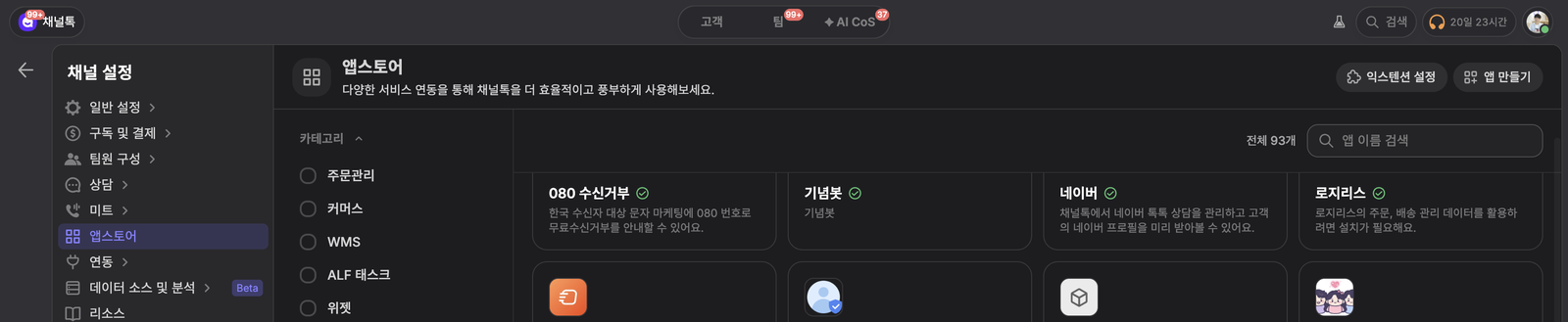
Open App Store from Channel settings. Expand Advanced features, then select Create app to open the Channel Developer Portal.
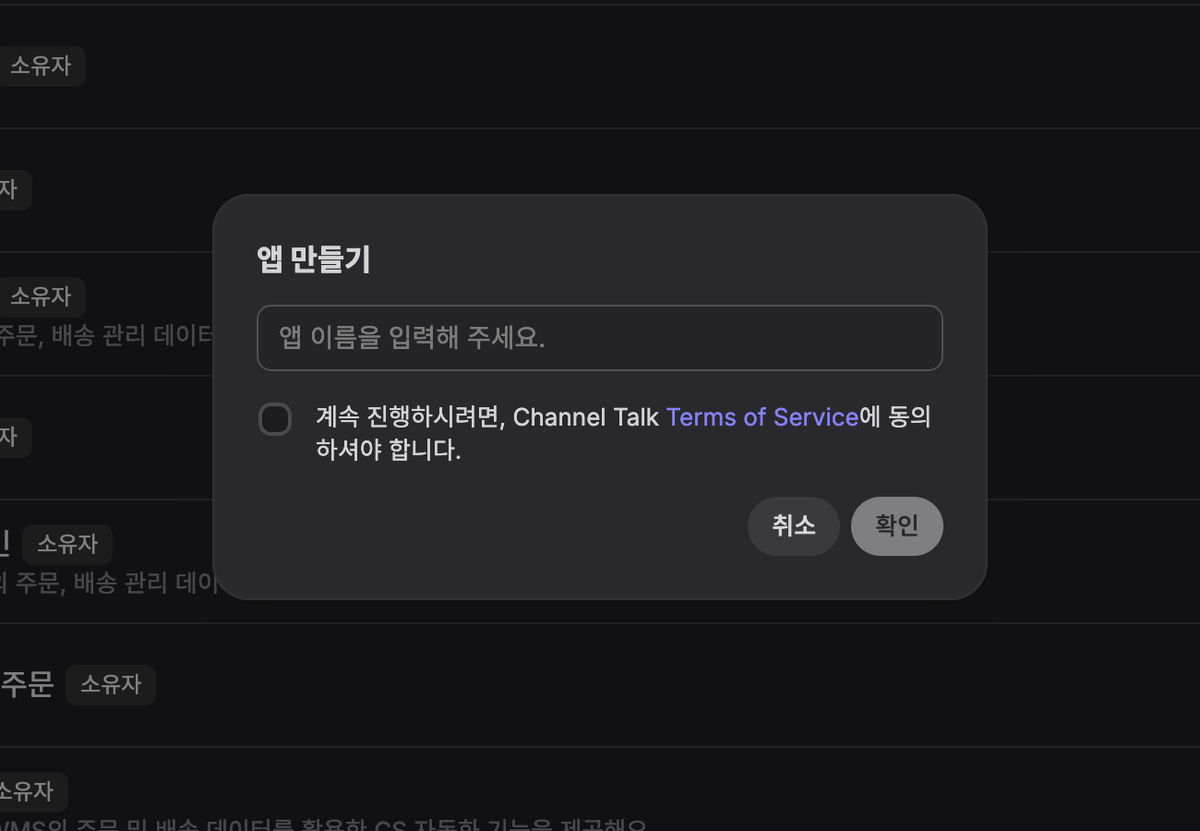
Enter a development name, accept the terms, and create the app.
Success: Continue when the new app's Basic Information page opens.
First check if it fails: If Advanced features or Create app is absent, confirm that you have permission to create an app in that Channel.
Find the Application ID under Basic Information.
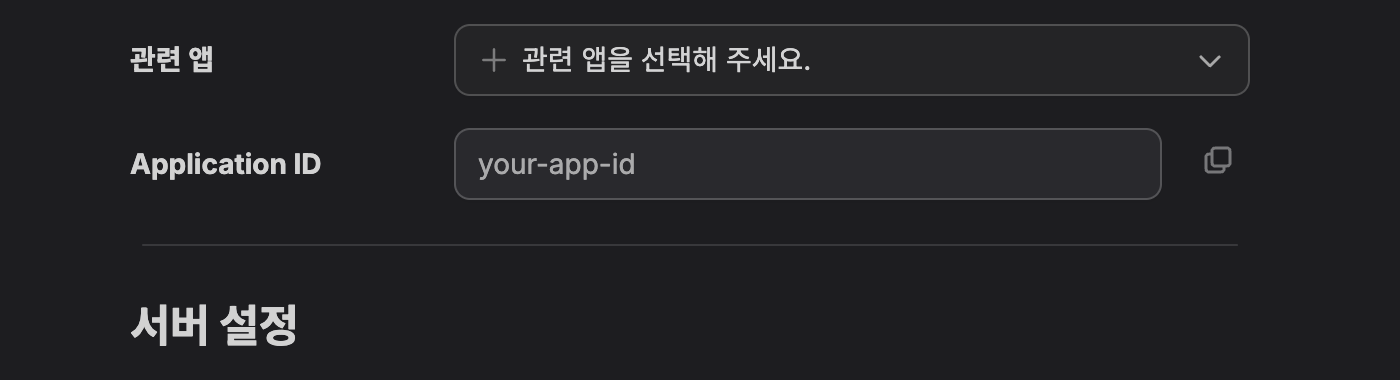
Issue a Secret under Authentication & Permissions and a Signing Key under Basic Information → Server Settings.
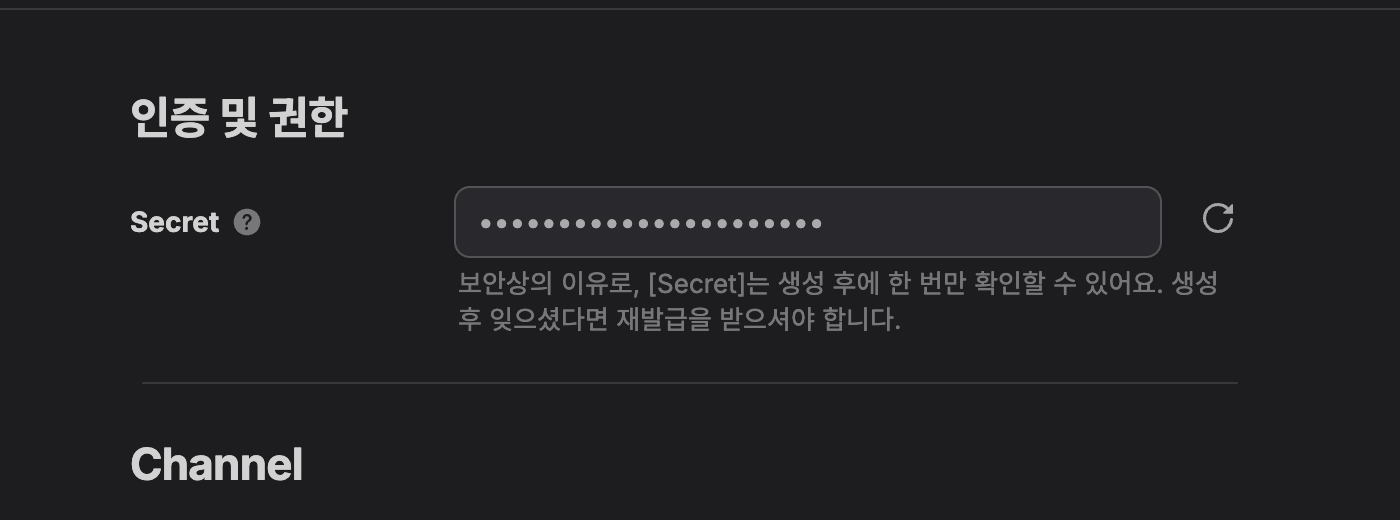
The Application ID is a public identifier. The Secret and Signing Key are server-only secrets shown only once after they are generated. Store them safely and never put them in Git, documentation, WAM code, or logs.
Under Authentication & Permissions, enable only the permissions used by this tutorial:
Channel:
writeGroupMessageTeam Member:
writeGroupMessageAsManager
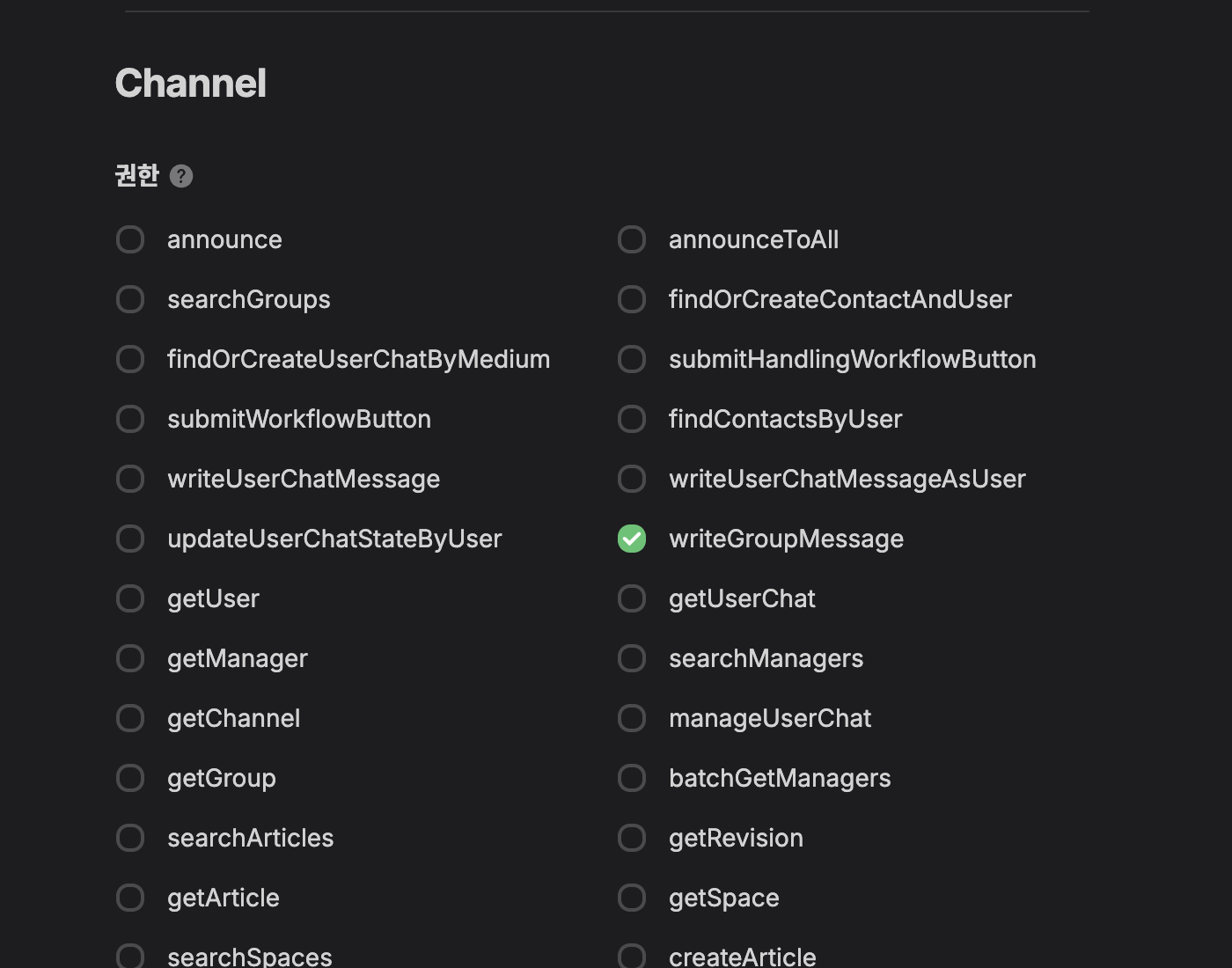
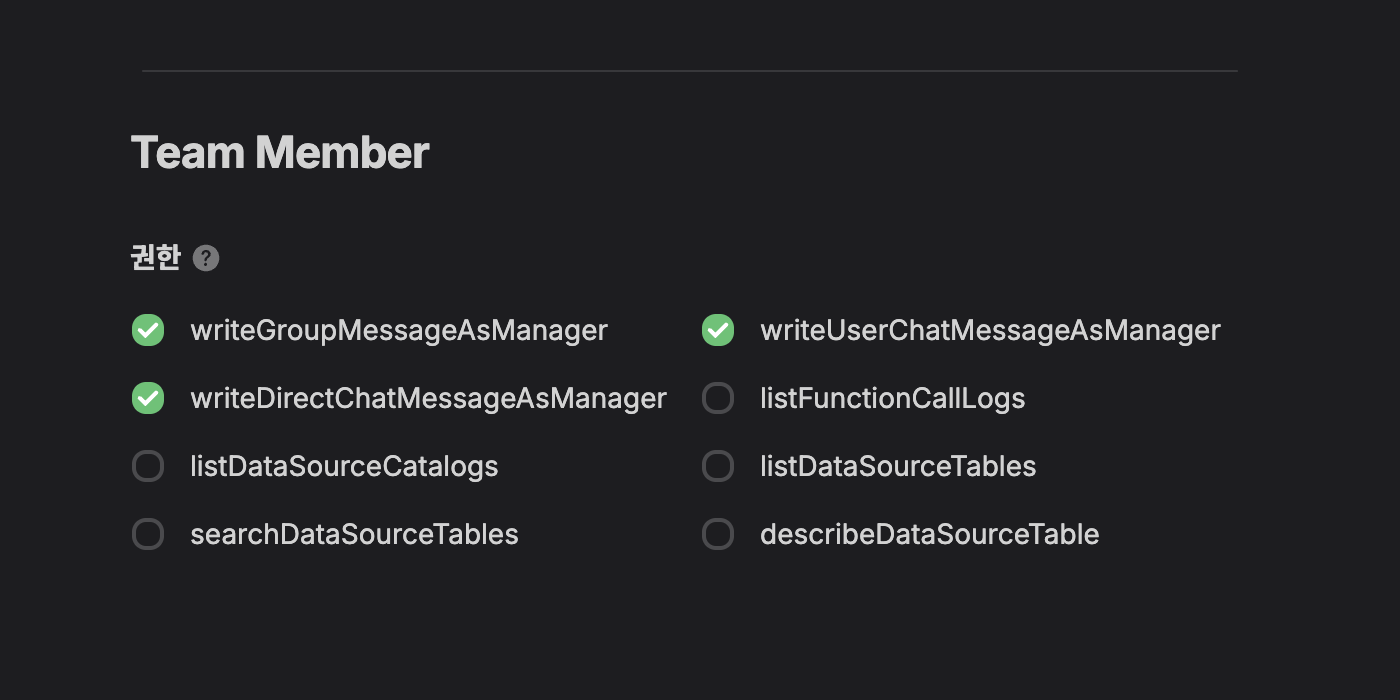
Success: Continue after you have the Application ID, Secret, and Signing Key and both permissions are enabled.
First check if it fails: If you lose a secret or Signing Key, issue a new one in the developer portal instead of guessing or reusing another value.
Clone the tutorial and create its environment file:
Put the values from the previous step in server/.env:
Install dependencies, then build and verify the project:
Start the server after every command passes:
Success: The terminal should report that the server is listening on port 3000. Keep this terminal running.
First check if it fails: Check your Node.js version and the first reported error. Do not disable signature verification or skip a failed command.
Open another terminal and expose local port 3000 over HTTPS. This example uses ngrok:
Copy the HTTPS address shown next to Forwarding. We call that address https://YOUR_HOST below.
Enter these two addresses under Basic Information → Server Settings in the developer portal:
Setting | Value |
|---|---|
Function Endpoint |
|
WAM Endpoint |
|
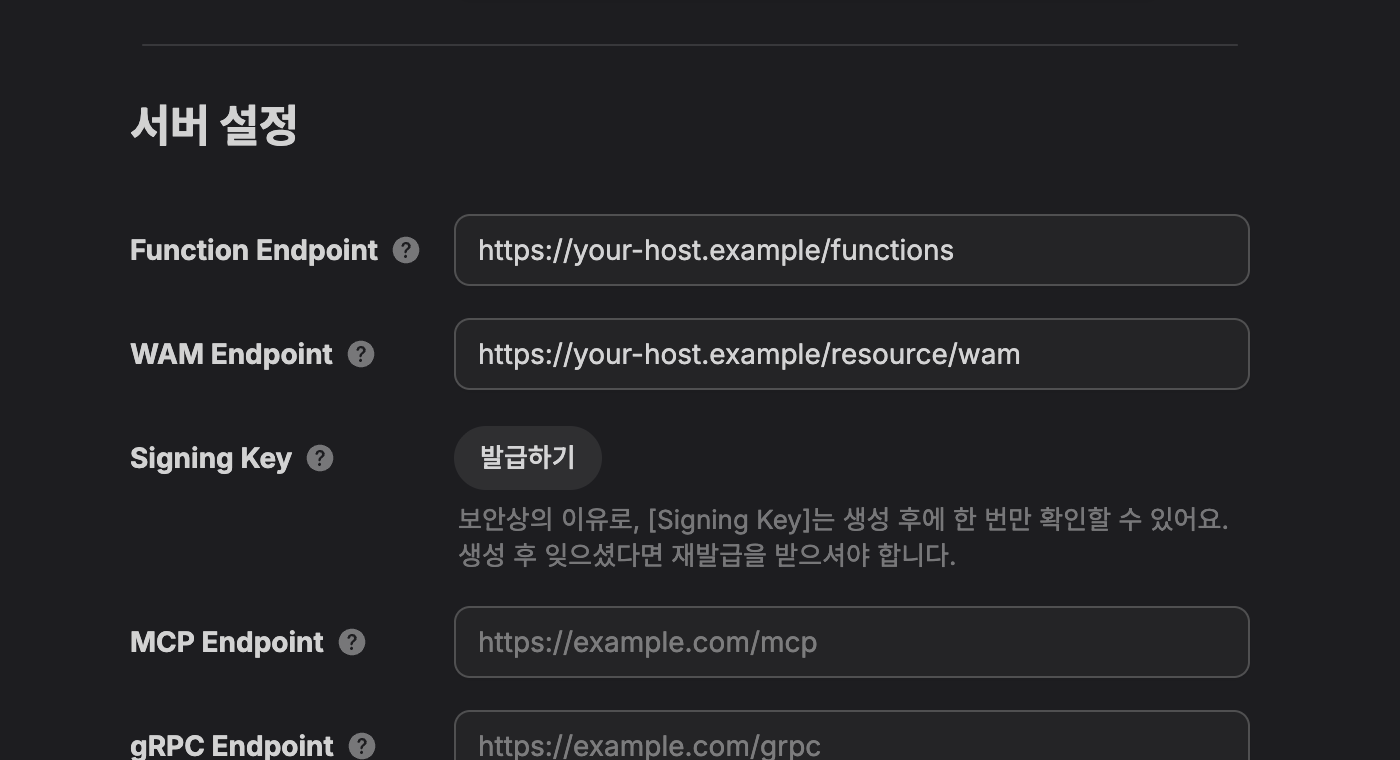
Do not append /v1 to the Function Endpoint or /tutorial to the WAM Endpoint. Save the settings, then restart the app server once.
Success: Confirm that Extension registration and the Function-list request succeed separately in the server log. Continue when the /tutorial Command metadata is accepted without an error.
First check if it fails: Recheck the Application ID, Secret, and tunnel address. If the tunnel address changes, update both endpoints in the developer portal.
Install the private app in a test Channel from the developer portal. Refresh the installation if the app is already installed.
Open a Channel group conversation.
Enter
/tutorialin the message field and run the Command.When the WAM opens, select the app-bot button and then the manager button.
You are done when both messages arrive:
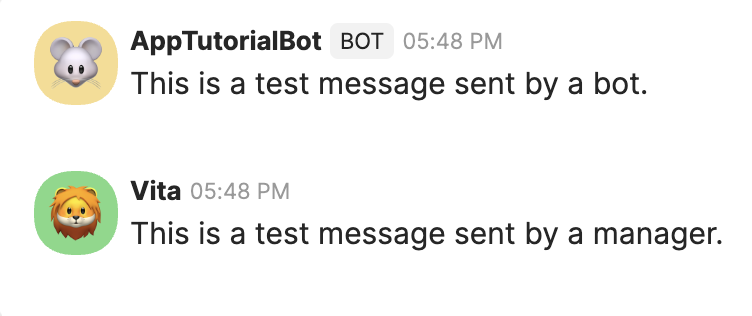
Success: You should see one message from the app bot and one from the current manager.
First check if it fails: If /tutorial is absent, check Extension registration, the extension.core.function.getFunctions request, and Command metadata validation in the server log, then reinstall or refresh the app. If the WAM opens but sending fails, check the permissions in Troubleshooting.
Follow this section instead of the TypeScript path if you use Go. You need Go 1.25 plus Node.js and Corepack for the WAM build.
Enter APP_ID, APP_SECRET, and SIGNING_KEY in .env, then load them into the current shell:
Build and test the project, then start the server:
Expose port 3022 from another terminal:
As in the TypeScript path, set the Function Endpoint to https://YOUR_HOST/functions and the WAM Endpoint to https://YOUR_HOST/resource/wam. You can also check the Go server at http://localhost:3022/ping. Then follow Run it in a test Channel.
Success: make test passes and the server log reports listener startup and successful Extension registration.
First check if it fails: If make run exits immediately, confirm that all three values from .env are loaded in the current shell.
After your first successful run, you can understand the flow as four steps:
The SDK registers the
command:v1Extension so Channel knows about the/tutorialCommand.Running the Command calls the
tutorial.openFunction, which opens the WAM.The app-bot button calls the app server's
tutorial.sendAsBotFunction.The manager button uses the WAM's
useNativeFunctionwith the current manager's authorization.
On the server, the SDK publishes Function schemas, verifies x-signature, and manages app and Channel tokens. More specifically, TokenManager reuses tokens while the SDK makes the registerExtension(appId, extensionName, systemVersion) call and answers Function discovery. In the WAM, useCallFunction routes an app Function call through AppStore to your server.
Read Concepts, Function registration, the Command guide, and the WAM guide when you need to change these internals.
Symptom | First check |
|---|---|
Extension registration fails | Application ID and Secret, public HTTPS address, and server restart |
| The Signing Key is entered as the original hex string |
| The Function Endpoint in the portal ends with |
WAM does not open | The WAM Endpoint ends with |
Manager message fails |
|
Bot message fails |
|
Use SKIP_SIGNATURE_VERIFICATION=true only for isolated local debugging. Never paste the Secret, Signing Key, or access/refresh tokens into an issue or log.
Learn how Function, Extension, and WAM fit together in Concepts.
Extend server behavior and the Command with Function registration and the Command guide.
Extend the screen and Function calls with the WAM guide.
Choose other capabilities in the Extension guide.
Use the production readiness guide before launch.
Find language-specific APIs in the TypeScript reference and Go reference.
See the complete implementation in the TypeScript tutorial or Go tutorial.
This document is maintained with the Channel App SDK. Check the SDK README first for current packages and the complete reading order. The source of truth for this Document is the GitHub source.